
REMOVE DUPLICATES IN GOOGLE SHEETS
Remove near-duplicate rows. Even when the spelling changes.
Typos, extra spaces and company endings can leave repeated records behind after Sheets’ built-in cleanup. Learn the free manual approach, then use TypoMatch: Remove Duplicates & Fuzzy Match when you need scored groups to review.
Free for up to 1,000 total input rows per run. Your original rows stay intact. Marketplace installation is not yet available.
1. Remove identical duplicates with Sheets
- Duplicate your tab. Work on a copy so you can compare the row count and recover a mistaken removal.
- Select the whole table. Include every related column, not just the names.
- Choose Data → Data cleanup → Trim whitespace for unwanted leading, trailing or repeated spaces.
- Choose Data → Data cleanup → Remove duplicates. Mark the header setting and select the columns that define a repeated record.
- Check the remaining rows and the removed count against your original.
Sheets considers identical values with different case, formatting or formulas to be duplicates. It does not resolve spelling differences or decide that two businesses are the same. Google also notes that Trim whitespace does not remove non-breaking spaces. See Google’s cleanup instructions.
2. Know what exact cleanup can miss
| Two entries | What to check |
|---|---|
John SmithJon Smith | A possible typo. A matching customer ID is stronger evidence than a similar name. |
Acme IncAcme Incorporated | Different company endings. Check the address or business ID before merging records. |
Avery MorganAvery Morgan | Extra spaces. Try Trim whitespace first; unusual spaces may need a helper column. |
For a short list, sort the entire table by name and compare nearby rows. Keep the original spelling beside any cleaned value. Sorting can separate a typo in the first letter from its correct spelling, so inspect other relevant fields too.
If the name is in A2, this keeps the original while lowercasing, replacing non-breaking spaces and trimming repeated ordinary spaces:
=LOWER(TRIM(SUBSTITUTE(A2,CHAR(160)," ")))Fill down only through your data rows. This does not fix typos or prove that similar records describe the same person. Formula separators can vary by spreadsheet locale.
3. Review near-duplicates with TypoMatch
- Open TypoMatch: Remove Duplicates & Fuzzy Match from Extensions after installation. One list: find duplicates is the default task.
- Choose your range, header setting and key columns. Include a useful second field when names alone are not enough.
- Choose whether to ignore extra spaces, case, accents, punctuation or company endings. Start at the default similarity threshold of 86 and inspect the suggestions before lowering it.
- Select Find duplicates → Preview. Inspect each representative, group size, score and Review label. A high score is a suggestion, not proof.
- Save a new copy with duplicates highlighted, or a new sheet with duplicate rows. The latter contains additional group members, not a fully deduplicated master list.
Each member must meet the similarity threshold against its group’s representative. Similarity cannot spread through a chain of weaker matches to combine unrelated records. Grouping still depends on row order and the selected fields, so review the actual members.
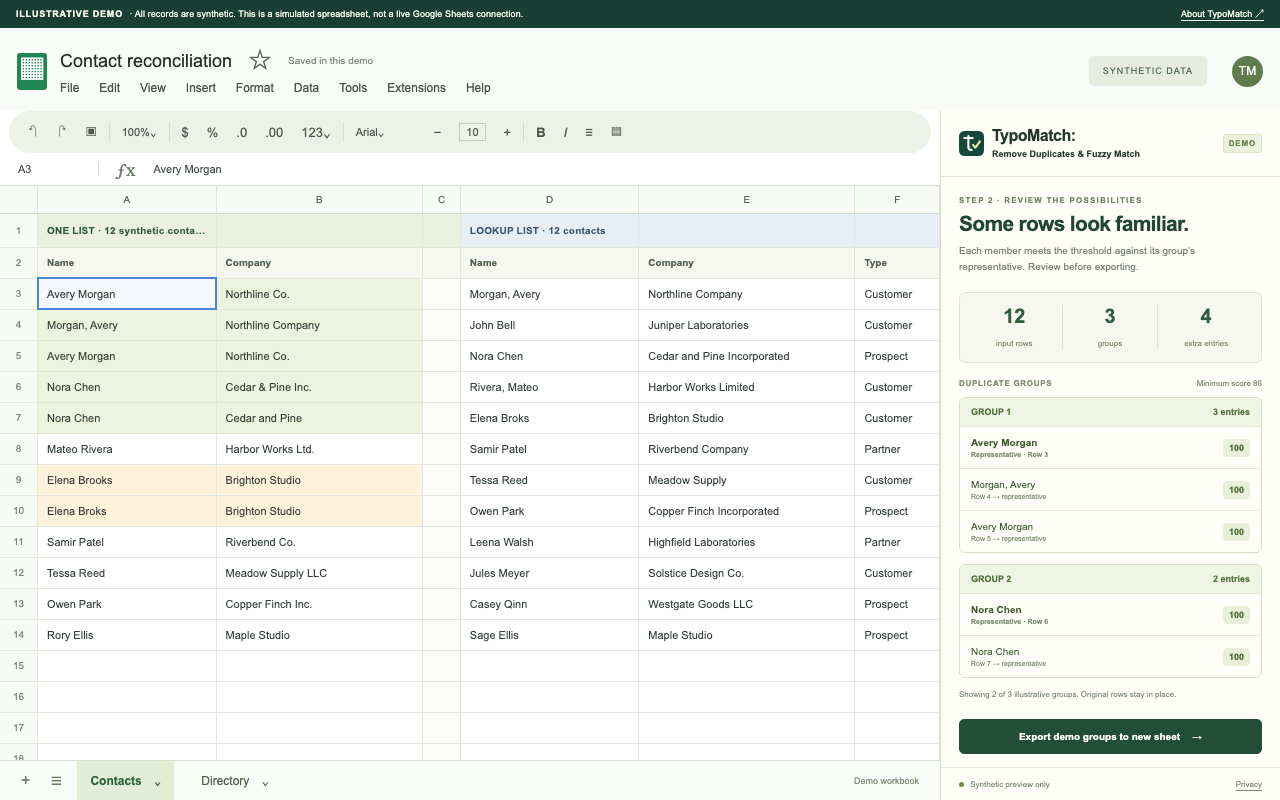
4. Remove only the rows you have confirmed
TypoMatch does not delete or merge your source rows. Use the highlighted copy and source-row references to check each extra entry against the record you want to keep. Preserve any unique email, phone number or other information before removing a whole row from your working copy. Keep the original tab until you have checked the result.
The sidebar’s Undo removes its last generated output when that output is unchanged. It does not undo your later manual deletions or merge field values for you. Use Sheets’ own undo and your original backup for those changes.
Need to compare two different lists instead?
Switch to Match two lists for fuzzy match suggestions and selected lookup values. Follow the names-with-typos guide or fuzzy VLOOKUP guide. Duplicate review and two-list matching use the same normalization controls and similarity scores.
Start with 1,000 rows, free.
Preview near-duplicates before saving anything. Pro is $5.00/month or $39/year for up to 100,000 rows per list, plus applicable tax. Runtime depends on your data and Google service limits.
See Free and Pro plans