
REMOVE DUPLICATES · 3 MIN READ
Remove near-duplicate rows in Google Sheets
Exact repeated values are a quick cleanup job. Slightly different names and company spellings need a review step before any rows are removed.
Use Sheets’ built-in tool for repeated values
- Duplicate the tab first so you have a copy to check against.
- Select the full table in the working copy. Choose Data → Data cleanup → Trim whitespace if unwanted spaces are the issue.
- Choose Data → Data cleanup → Remove duplicates. Set whether the range has headers and select the columns that define a duplicate.
- Review the remaining rows and count before using the cleaned copy.
Sheets treats identical values with different letter case, formatting or formulas as duplicates. It does not treat every similarly spelled value as identical. Selecting only Name may remove two distinct customers with the same name; include an ID or another meaningful field. Google’s cleanup instructions explain these settings.
Martha Anderson and Marta Anderson might be one person with a typo—or two different people. A shared company is useful context; a verified customer ID is stronger evidence.
For a small list, review nearby spellings manually
Sort the entire working table by the relevant name column, keeping all columns together. Compare adjacent rows and use another field to confirm likely duplicates. Mark your decisions in a separate column before deleting from the copy. Sorting helps with similar beginnings but can separate names with a typo in the first letter, so it is not a complete duplicate detector.
Use TypoMatch for a scored review
Once installed, choose One list: find duplicates in the sidebar. Select your range and key columns, set suitable normalization options, and run the preview. Every group member must meet the chosen threshold against its representative; one intermediate spelling cannot bridge two dissimilar names into a group.
Inspect the representative, scores and group members. Save a highlighted copy or export the additional duplicate members to a new sheet. TypoMatch retains the originals and does not automatically delete source rows. If you want a reduced list, make the final removal from a separate copy after reviewing those results.
Similarity is a suggestion, not proof. Start with the default threshold and check ambiguous groups before broadening it. Matching two different lists? Use the two-list workflow instead.
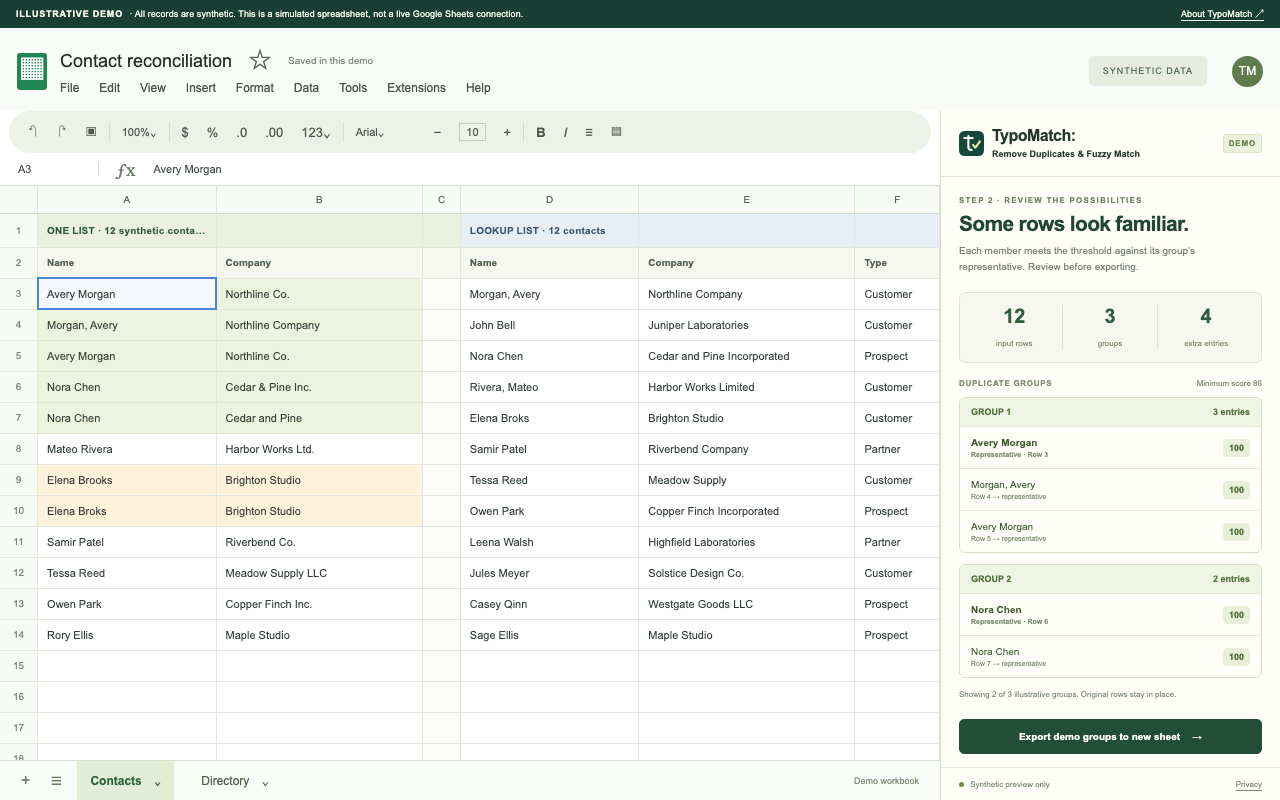
See the review before you save.
Explore TypoMatch’s preview, safe output options and Free/Pro plans.
Explore TypoMatch